
 WooDigitals
Elementor makes it easy to build beautiful pages without code. But many site owners notice the same problem a few months later: the site feels slow. Pages take three, four or even six seconds to load, PageSpeed Insights shows red scores, and visitors leave before the page appears.
The good news is that Elementor itself is rarely the real problem. A slow Elementor site is usually caused by heavy images, too many plugins, bloated layouts or weak hosting. Fix those, and Elementor can load fast and pass Core Web Vitals.
In this guide, you will learn 12 proven ways to speed up an Elementor website, in the same order we use when optimizing client sites at WooDigitals.
Why Is My Elementor Site So Slow?
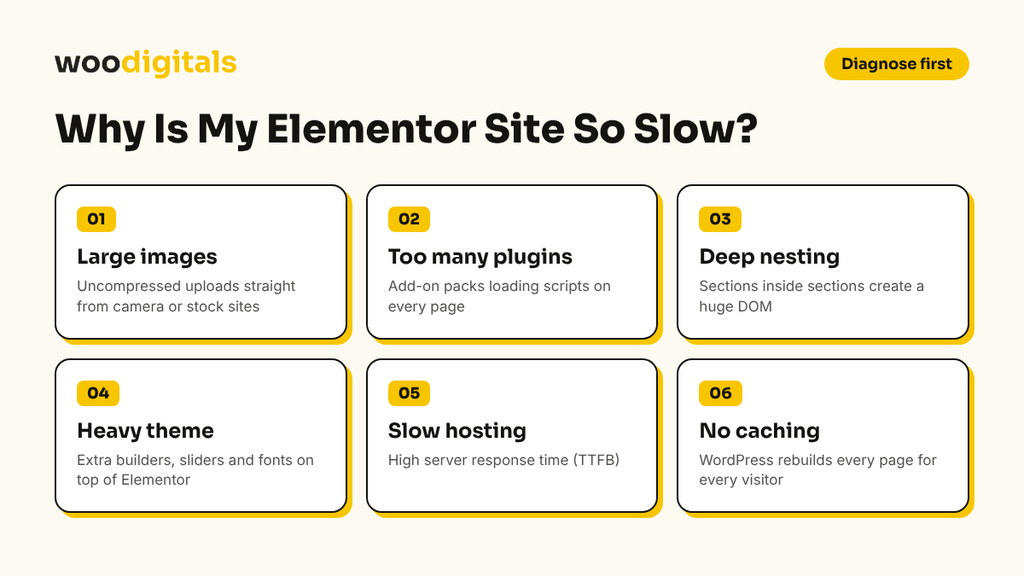
Before fixing anything, it helps to know where the weight comes from. The most common causes are:
- Large, uncompressed images uploaded straight from a camera or stock site
- Too many plugins, especially several Elementor add-on packs loading scripts on every page
- Deep nesting of sections, columns and inner sections, which creates a large DOM size
- A heavy theme that loads its own page builder, sliders and fonts on top of Elementor
- Cheap shared hosting with slow server response time (TTFB)
- No caching, so WordPress rebuilds every page for every visitor
If you already use a lightweight theme, you are off to a good start. In our first article, we explained why the Astra theme is compatible with Elementor and why that pairing is one of the fastest setups for page builder sites.
Step 1: Test Your Current Speed First
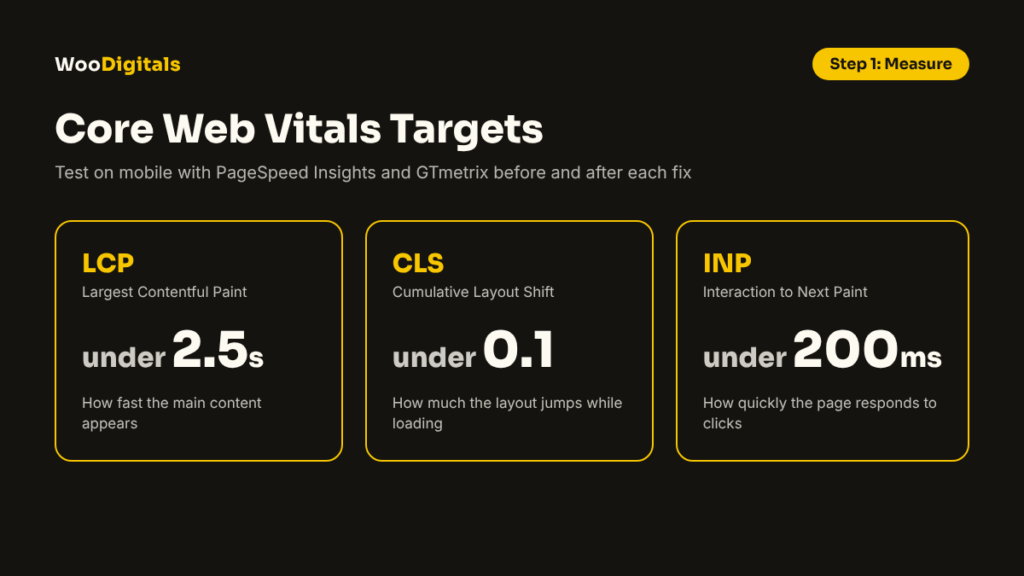
You cannot improve what you do not measure. Run your homepage and one important inner page through Google PageSpeed Insights and GTmetrix. Write down these numbers:
- LCP (Largest Contentful Paint): aim for under 2.5 seconds
- CLS (Cumulative Layout Shift): aim for under 0.1
- INP (Interaction to Next Paint): aim for under 200 milliseconds
- Total page size and number of requests
Test the mobile score, because Google ranks sites using mobile-first indexing. Retest after each change so you know what actually helped.
Step 2: Use a Lightweight Theme Like Astra
Your theme loads on every single page, so it matters more than any plugin. Lightweight themes such as Astra, Hello Elementor, GeneratePress and Kadence load very little CSS and JavaScript of their own. That leaves Elementor to do the design work without fighting the theme.
Astra is a strong choice because it is built to work with Elementor: you can disable the title, sidebar and container per page, and use Elementor full-width templates. Read our guide on Astra and Elementor compatibility for the full setup.
Step 3: Turn On Elementor’s Built-In Performance Features
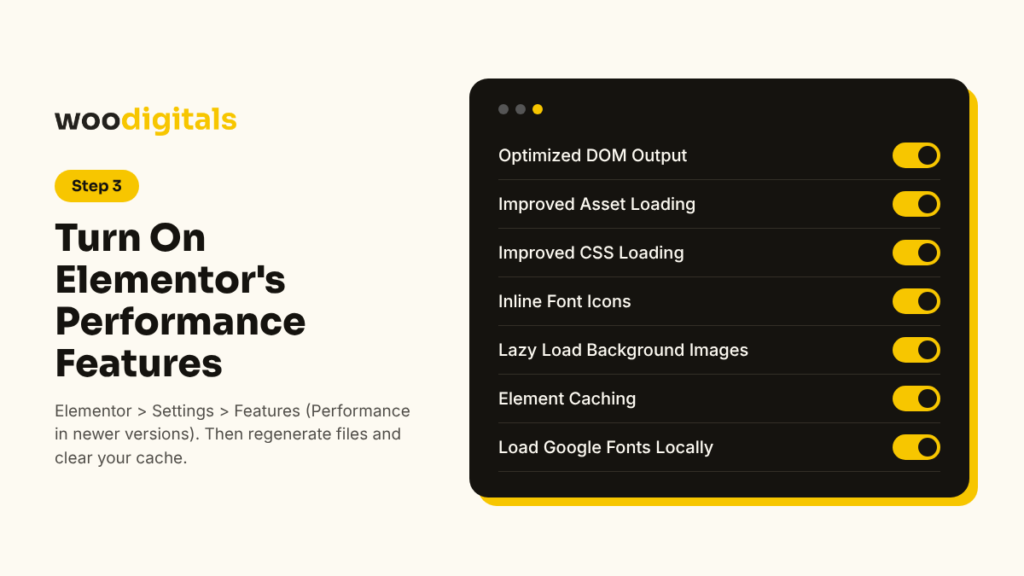
Elementor ships with performance options that many site owners never switch on. Go to Elementor > Settings > Features (called Performance in newer versions) and enable:
- Optimized DOM Output: removes extra wrapper divs
- Improved Asset Loading: loads widget scripts only where they are used
- Improved CSS Loading: loads widget CSS only when needed
- Inline Font Icons: renders icons as SVG instead of loading full icon font files
- Lazy Load Background Images: delays background images until they scroll into view
- Element Caching: caches the output of widgets that do not change
Also set CSS Print Method to External File so browsers can cache the CSS. After saving, go to Elementor > Tools and click Regenerate Files & Data, then clear your cache.
Step 4: Optimize and Compress Your Images
Images are usually the heaviest part of an Elementor page. To fix them:
- Resize images before upload. A full-width hero rarely needs to be wider than 1920px.
- Convert images to WebP or AVIF format.
- Compress them with a plugin such as ShortPixel, Imagify or EWWW Image Optimizer.
- Lazy load images below the fold, but do not lazy load the hero image, because that hurts LCP.
This single step often cuts total page size by 50% or more.
Step 5: Install a Good Caching Plugin
Caching saves a ready-made copy of each page so WordPress does not rebuild it for every visitor. Popular options that work well with Elementor include:
- WP Rocket (paid, easiest to set up)
- LiteSpeed Cache (free, best on LiteSpeed servers)
- W3 Total Cache or WP Super Cache (free)
Use only one caching plugin. Two caching plugins running together often break layouts and slow the site down.
Step 6: Minify and Delay JavaScript and CSS
Most caching plugins can also minify CSS and JavaScript and delay non-critical scripts until the user interacts with the page. Delaying third-party scripts like chat widgets, analytics and Facebook Pixel can improve INP and total blocking time noticeably.
After enabling these options, check your forms, sliders, menus and popups. If something breaks, exclude that script from delay or minification.
Step 7: Reduce DOM Size in Elementor
A large DOM means the browser has more elements to build and style. Elementor layouts often grow large because of nested sections, inner sections and extra widgets.
To reduce DOM size in Elementor:
- Switch to Flexbox Containers instead of the old Section and Column structure
- Avoid stacking inner sections inside inner sections
- Use one Text Editor widget instead of several separate Heading and Text widgets where possible
- Remove hidden elements you only show on desktop or mobile; build simpler responsive layouts instead
Step 8: Remove Unused Plugins and Add-Ons
Every plugin can add database queries, scripts and stylesheets. Elementor add-on packs are a common cause, because some load all their widget assets on every page.
Review your plugin list and remove anything you no longer use. If you only need one or two widgets from a big add-on pack, look for a lighter alternative or ask a developer to build a small custom widget instead.
Step 9: Host Google Fonts Locally and Limit Font Weights
Loading fonts from Google’s servers adds extra connections and can cause layout shift. In Elementor, enable Load Google Fonts Locally under Settings > Performance, or use a plugin like OMGF.
Also limit yourself to two font families and only the weights you use, for example 400 and 700. Each extra weight is another file to download.
Step 10: Upgrade Your Hosting and PHP Version
No plugin can fix a slow server. If your Time to First Byte (TTFB) is above 600 milliseconds, your hosting is likely the bottleneck. Look for hosting with:
- LiteSpeed or NGINX servers
- Server-level caching
- PHP 8.2 or higher
- Object caching such as Redis
Upgrading PHP alone can make WordPress noticeably faster, and most hosts let you change it from the control panel.
Step 11: Use a CDN
A Content Delivery Network (CDN) stores copies of your files on servers around the world, so visitors download them from a nearby location. Cloudflare has a free plan that works well with Elementor, and services like BunnyCDN are affordable for image-heavy sites.
Step 12: Clean Your Database Regularly
Over time, WordPress collects post revisions, spam comments, expired transients and leftover data from deleted plugins. Elementor also saves many revisions as you edit.
Use a plugin like WP-Optimize, or the database tools in WP Rocket, to clean this up. You can also limit post revisions by adding this line to your wp-config.php file:
define( 'WP_POST_REVISIONS', 5 );Always take a full backup before cleaning the database.
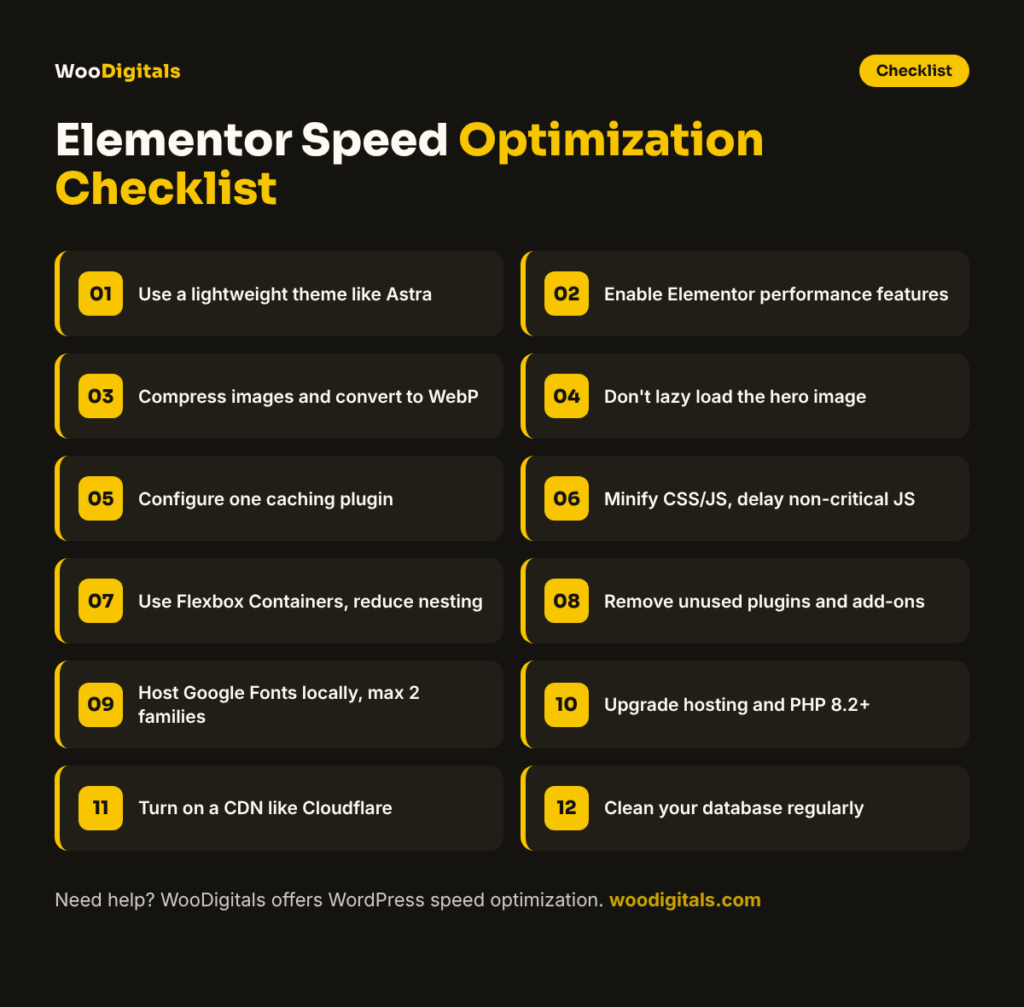
Elementor Speed Optimization Checklist
Use this quick checklist after you finish:
- Lightweight theme (Astra or Hello Elementor) active
- Elementor performance features enabled
- Images resized, compressed and in WebP format
- Hero image not lazy loaded
- One caching plugin configured
- CSS and JavaScript minified, non-critical JS delayed
- Flexbox Containers used, nesting reduced
- Unused plugins removed
- Google Fonts hosted locally, two families maximum
- PHP 8.2+ and good hosting
- CDN active
- Database cleaned
Conclusion
Elementor is not slow by default. Slow Elementor sites usually come from heavy images, extra plugins, deep nesting and weak hosting. Start with a lightweight theme like Astra, turn on Elementor’s own performance features, optimize your images and add caching. Those four steps alone fix most speed problems.
Need help? At WooDigitals, we offer WordPress speed and performance optimization for Elementor, WooCommerce and LearnDash websites. We find what is slowing your site down and fix it without breaking your design. Contact us for a free speed audit.
Frequently Asked Questions
Is Elementor bad for page speed?
No. Elementor adds some code, but most slow Elementor sites are slow because of large images, too many plugins, deep nesting and poor hosting. With a lightweight theme, caching and Elementor’s built-in performance features, an Elementor site can pass Core Web Vitals.
What is the best theme for a fast Elementor website?
Astra and Hello Elementor are two of the fastest themes for Elementor. Astra adds more design options while staying lightweight. See our guide on why Astra is compatible with Elementor.
What is the best caching plugin for Elementor?
WP Rocket is the easiest choice for most Elementor sites. If your host runs a LiteSpeed server, the free LiteSpeed Cache plugin is an excellent option. Use only one caching plugin at a time.
How do I reduce DOM size in Elementor?
Use Flexbox Containers instead of sections and columns, avoid nested inner sections, combine widgets where you can and enable Optimized DOM Output in Elementor’s settings.
How fast should an Elementor website load?
Aim for a Largest Contentful Paint under 2.5 seconds on mobile and a total load time under 3 seconds. Pages that load faster usually see lower bounce rates and better rankings.
Can WooDigitals speed up my Elementor website?
Yes. WooDigitals offers WordPress speed and performance optimization for Elementor, WooCommerce and LearnDash sites. We audit your site, fix what slows it down and keep your design intact.
